 Geek
Geek Geek Uninstaller.
Fast removal. Clearer decisions.
A portable Windows uninstaller, with practical guides for clean removal, Microsoft Store apps and safe leftovers review.
Portable application. Verify the downloaded program before running it.

Understand your uninstall options
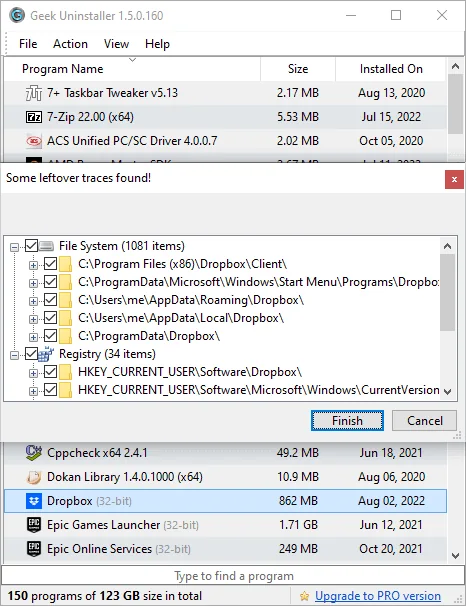
Geek Uninstaller can run standard uninstallers, scan for leftover entries and assist with broken uninstall records. Review every proposed deletion.
Clean removal
Start the normal uninstall wizard and inspect the remaining files and registry references.
Force Removal
Use for broken or orphaned entries only after safer methods fail.
Store apps
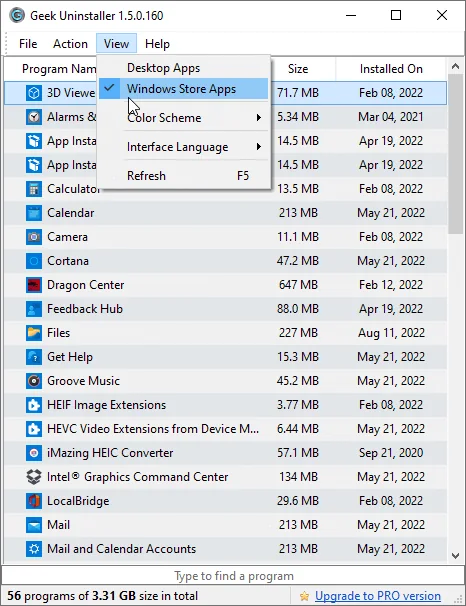
Switch between desktop applications and Microsoft Store apps in the same interface.
Instant search
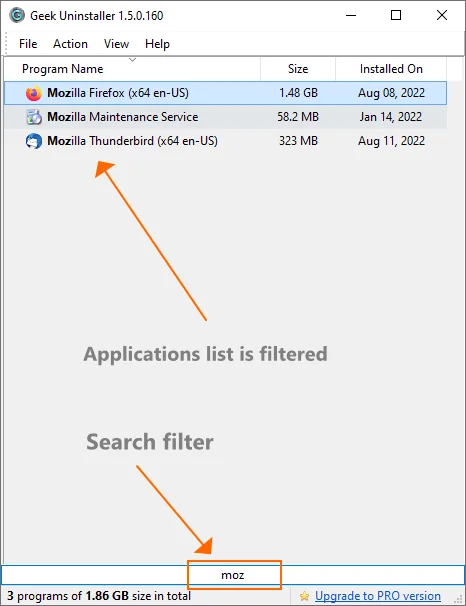
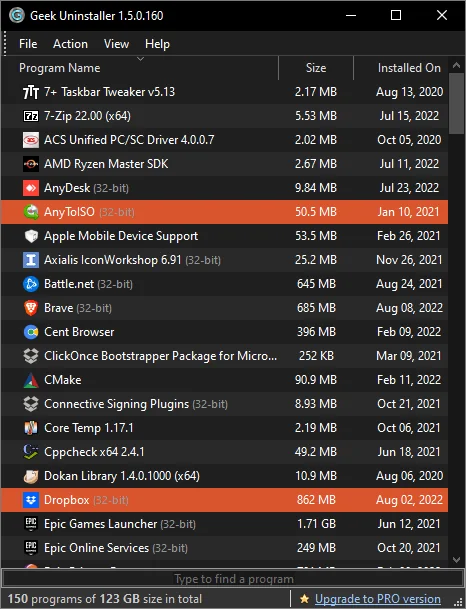
Type to filter a large list and inspect the exact version and publisher.
Portable
Extract the small archive and launch the executable without a separate setup wizard.
ARM64-ready
October 2026 release supports native ARM64 along with 32-bit and x64 Windows.
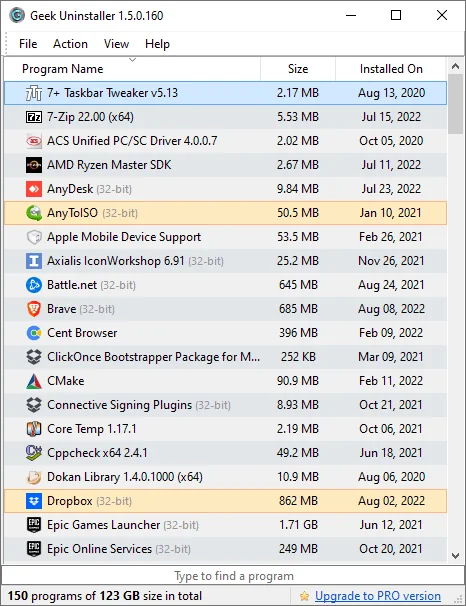
Geek Uninstaller interface
Original application screenshots from the user-provided reference archive. The executable itself is not included in this website ZIP.
Windows guides organized by task
Find a specific error, removal workflow, compatibility question or comparison without searching through repetitive tips.
Download & setup
Choose the right build, extract the portable program, and understand what it changes.
14 focused guidesUninstall workflows
Remove desktop and Store applications while keeping user data under control.
15 focused guidesTroubleshooting
Investigate failed removal, missing entries and access or registry issues.
11 focused guidesWindows compatibility
Windows 11, Windows 10, x64, ARM64, permissions and enterprise scenarios.
12 focused guidesSafety & recovery
Protect documents, save changes and decide which leftovers should remain.
9 focused guidesCompare tools
Understand the trade-offs against Windows tools and other uninstallers.
Safe removal in four steps
- Save your work and back up settings or profiles you may want to recover.
- Try Windows Installed apps or the product’s standard uninstall command first.
- Review optional leftover files and registry keys before confirming deletion.
- Restart if prompted, then confirm the target app is gone and other software still works.
Avoid force-removing Windows components, drivers and security products without vendor documentation.
Frequently asked questions
Is Geek Uninstaller free?
The free edition is licensed for personal use only. A separate commercial Uninstall Tool offers additional features.
Does it work on Windows 11 ARM64?
Yes. Version 1.6.0.200 adds native ARM64 support according to the publisher’s release notes.
Does it need to be installed?
No. Extract the portable archive and launch the executable; removing other applications still changes Windows.
Should I use Force Removal every time?
No. Prefer the standard vendor uninstaller, then review optional leftovers. Use force removal only for broken registrations.
What is the current release?
The publisher lists 1.6.0.200, released on October 14, 2026; verify again before downloading.